> ## Documentation Index
> Fetch the complete documentation index at: https://ampersand-24eb5c1a-seo-aeo-quick-wins.mintlify.site/llms.txt
> Use this file to discover all available pages before exploring further.
# Loxo
## Checklist before installing a Loxo integration
Before beginning the installation, you’ll need to gather a few metadata values from your Loxo account. The steps below outline where to locate each of these values.
### 1. Full Domain
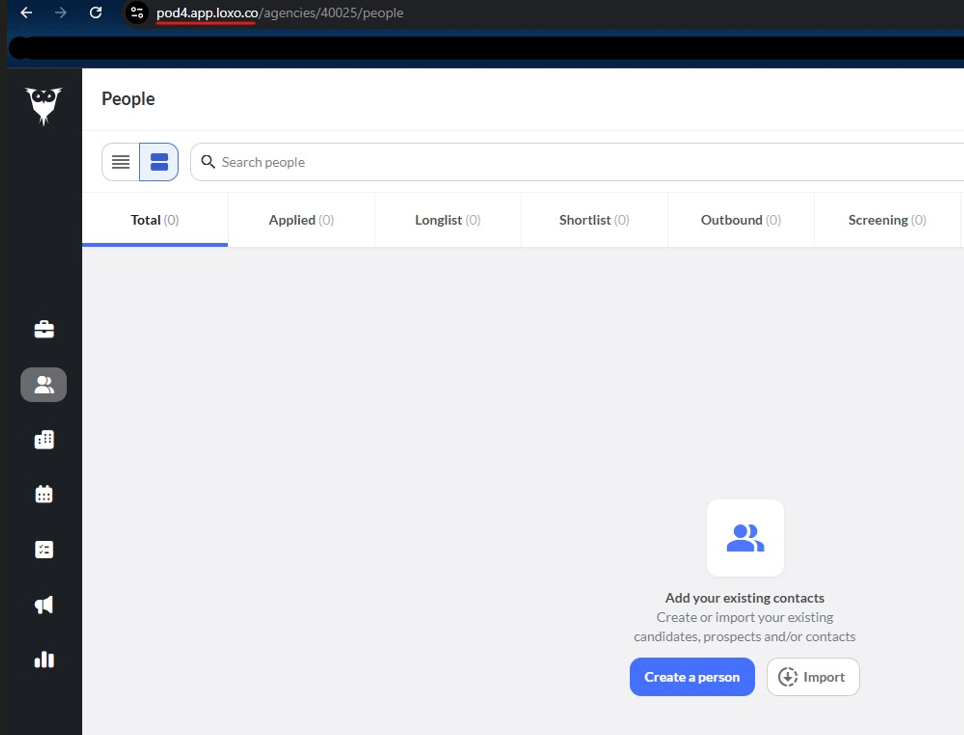
Log in to your Loxo account and check the URL in your browser’s address bar. It typically follows this pattern: `https://[your-domain-here]`.
 ### 2. Agency Slug
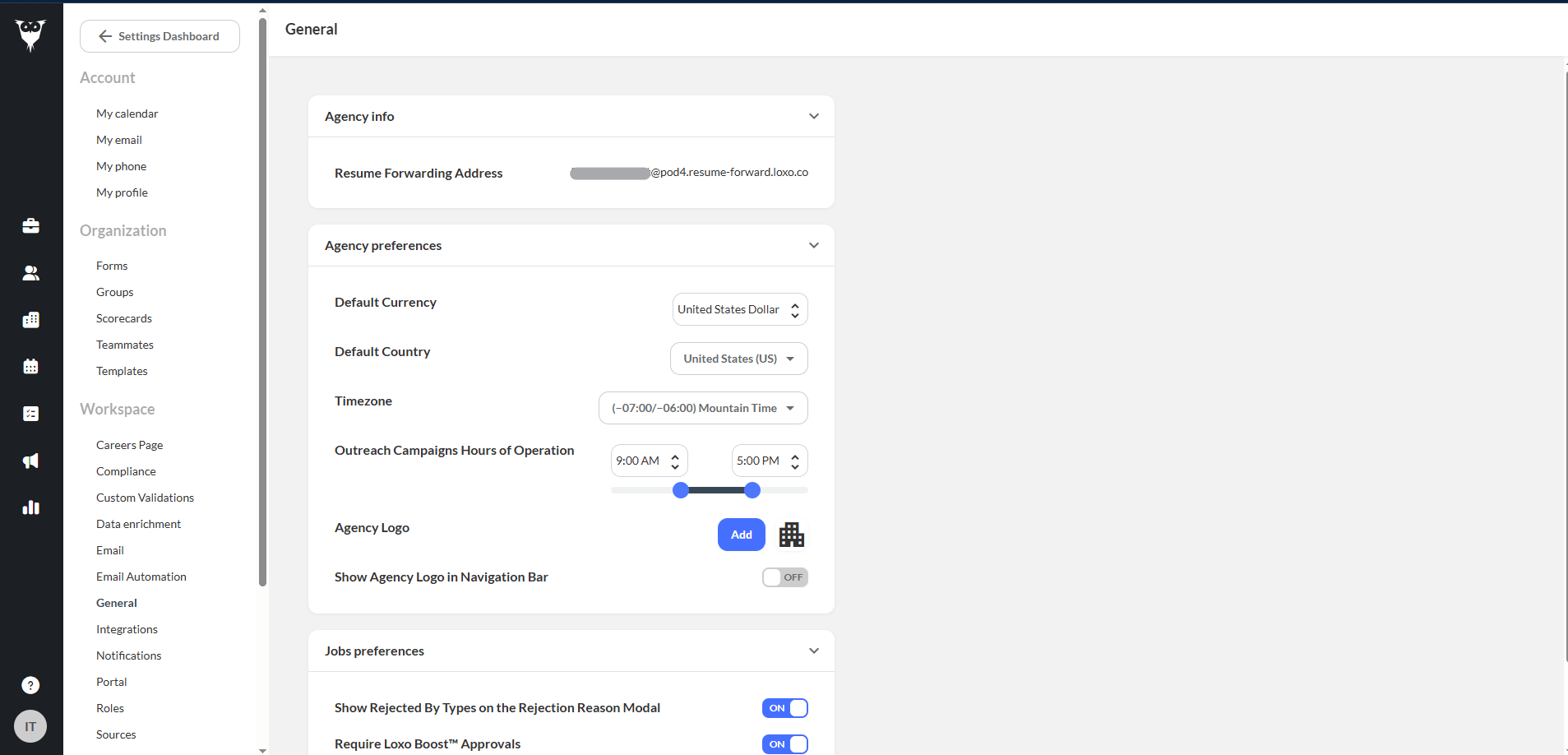
Go to **Settings > Workspace > General**. In the **Agency Info** section, check the **Resume Forwarding Address**. The text before the '@' symbol is your **Agency Slug**.
### 2. Agency Slug
Go to **Settings > Workspace > General**. In the **Agency Info** section, check the **Resume Forwarding Address**. The text before the '@' symbol is your **Agency Slug**.